



Last year when I went to Photoshop World I arrived knowing the basic concept of DNG file types but not really seeing the pressing importance of switching over to using them. Well, I definitely “drank the cool-aid” while I was there because I left being a firm DNG convert.
I don’t want to beat you over the head and demand you starting converting your raw files to DNG files, but I do want to explain what a DNG is, then three things about them, to give you a taste of the cool-aid.
First let me explain what a DNG is: DNG stands for Digital Negative and it is an “open source” format created by Adobe that effectively standardizes the raw data. Each camera brand has their own format for collecting the data when an image is captured. In other words, a raw file by Canon, a CR file, may have different data than a NEF file, which is a Nikon raw file.
1. How DNG Files are Edited
You edit DNG files exactly the same way you would a raw file. This usually means through Adobe Camera Raw (ACR) or Lightroom, although some may use Aperture or other editing software. A DNG opens just as a raw file; you will see no differences there. All the same data is available to you.
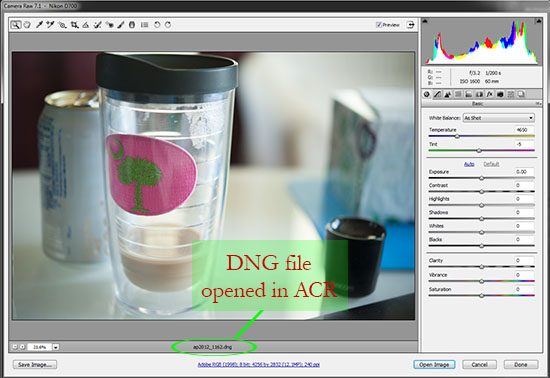
In the example, I opened a DNG in Photoshop, which made ACR open. I circled the file name at the bottom, so you can see that it is a DNG file being edited in ACR.
2. No Metadata Sidecars
Whenever a NEF or CR (or other camera brand raw files) file is edited in ACR, metadata sidecars are created to store the edits made. You will see them as .xml files that are listed next to your raw files on your hard drive.
Digital negatives do not require those sidecar files because the metadata is saved directly to the DNG file.
Why does that matter? With raw files, all your edits are in the xmp sidecar. If you back up your raw files but not the sidecars, when you go to access that file you will only have the original raw data, not the edit, and you will need to re-edit.
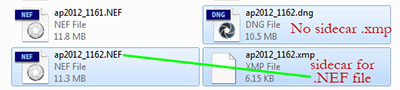
I edited both the NEF and DNG files (of the same image) in ACR. You can see below that the raw file has a .xmp sidecar but the DNG file does not.
3. Smaller File Size
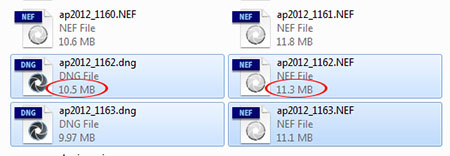
Raw files are huge files, often being twice the size of their JPG counterpart. My Nikon D700 raw files are around 11 MB, but newer cameras with higher megapixels create raw files that are 24 – 36 MB. However, when one of my raw files is converted to DNG, it is a whole MB smaller. That might not seem like much, but when you are storing thousands of images on your hard drive(s) it can really add up.
Below is an example of two raw files compared to their DNG counterparts. I imported the raw files into Lightroom, then converted to DNG via the export function.
At this point you may be thinking you like the sound of all this but how the heck do you convert your raw files to DNG? It really depends on your editing program and when you want to convert.
- Lightroom – you can convert directly at import, which is what I do. At the top of the import screen you have the choices of Copy as DNG, Copy, Add, Move. Choose “copy as DNG” and your image will be converted during the import process.
- Lightroom – you can also convert at export. This would mean you imported as raw, and when converting at export you create new DNG files, so you will have both. Some photographers choose to import as raw, then export as DNG for their back-up.
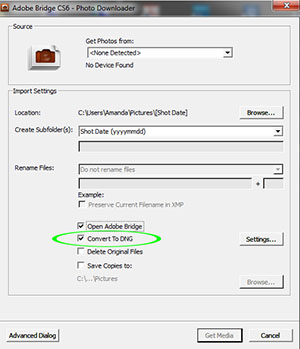
- Photoshop – you can also convert at import, shown in the image below.
- Photoshop Elements – you do not have the ability to import as DNG or convert later. You can, however, open a DNG file in ACR once it has been converted (like in Lightroom).
This is a lot of information, even though it’s only “three things.” Take some time to digest it, read out it via Internet searches and then try it out yourself. I am not saying you HAVE to change, but I do encourage you to explore the option so you can make an educated decision for yourself.


Hello! I’m Amanda, a quirky, introverted Mom of four, who is passionate about helping others learn their cameras and editing software. I also currently homeschool my four kids, ages 13 to 6, all whom run away when they see me carrying my camera.
Visit me at my WEBSITE and FACEBOOK page!






Great timing for this article! I am a new photographer which happens to use LR4 for editing and I love it! I also recently started shooting in RAW. I’ve been editing the RAW files in LR4 (export them as JPEGs). Would you recommend converting the RAW files into DNG files before editing?
Great info, thanks! Because of it, I am a new fan/follower of yours!
Is there a way to import my raws as dng files through adobe camera raw? Thanks again!
Adobe also has a separate DNG converter program that you can download for free. I was instructed to use it because my camera (Canon 60D) is newer than my version of PS (CS4). Anyone know more about this?
Is there any advantage to the correctablity of a DNG vs a Raw? I am a canon user, and always shoot raw. I use ACR to process and do not import them through ACR (did not know I could/should) I simply copy over my files from the card to a new client folder, opening that in ACR to start the editing process.
I am all about saving room, and so am intrigued. Are there other benefits besides space saving? Is this expected to be a more universal format that will be more “readable” in the future?
Thanks for the info..
Wow. How did I not know of this? Thank you so much for putting it so clearly and for writing it at all! Next time I upload, I’m going to try it out! I am also wondering the same thing as Lori ^^^ is there any difference in how editable the image is? Editing still doesn’t damage the file like jpeg and I can still make the same crazy awesome adjustments? RAW rocks!
one day I woke up to find that my elements version no longer was able to open RAW files! I must have missed the memo ;P Went to Adobe, got the DNG converter, now it’s not problem opening and editing DNGs in PSE. The problem is the extra Mb!!! Ugh!
Love the article! I have a question though… I use LR4 for the majority of my edits. Since LR is a non-destructive format, does it benefit me to also save the file as a DNG since I can re-open the RAW NEF file any time I want in my LR catalog & view all of my edits? Thanks! 🙂
*Loved* this article! I recently edited all of my NEF files from a vacation and somehow moved the NEF files but not the XMP files and had to start all over! I’m definitely looking into the DNG – no more XMP files for me!!! =)
Try the following experiment:
1. Edit a DNG file in Lightroom.
2. Exit Lightroom.
3. Copy the edited DNG file to another location.
4. Open Lightroom and delete the original DNG file.
5. Close Lightroom.
6. Copy the saved DNG file back to it’s original location.
7. Open Lightroom and resync the folder.
8. Open the DNG file and see if your edit is still there.
If DNG files save edits, the change should be there. When I do this, the edit is missing. I don’t think DNG files save edits.
Alternatively, you can skip a few steps and just buy a Pentax. Pentax has their own PEF format for raw files, but most of the new cameras (since the K-10D I think) offer the option in camera to use DNG rather than PEF to store raw files.
I use Photoshop elements and you can get a dng convertor download for free from Adobe. It works great. The convertor turns all your raw files in dng files which you can then open and edit as if they were raw files in elements. Its one extra step in the process that can make a huge difference! And apparently adobe is constantly updating the convertor so that always recognizes the latest and greatest new version of RAW our camera makers push on us.
I have a Pentax and have it “in” camera DNG.. I also have PSE 10 and have had no problems on import.. but maybe thats because they are already in the DNG format from my camera.. I just recently switched over and love it!